

No items found in your cart!
No items found in your cart!
 you definitely can not afford to miss this. READ HERE https://www.hub.goglowonline.com/view-post.php?post_id=83, Thanks for always taking out time to read through our blog posts @ Goglow Hub! We are Happy that you enjoy it!&image=<img src='https://www.hub.goglowonline.com/upload/17706335811770631759080~2.png'/>) |
|
|
|
|
|
|
|
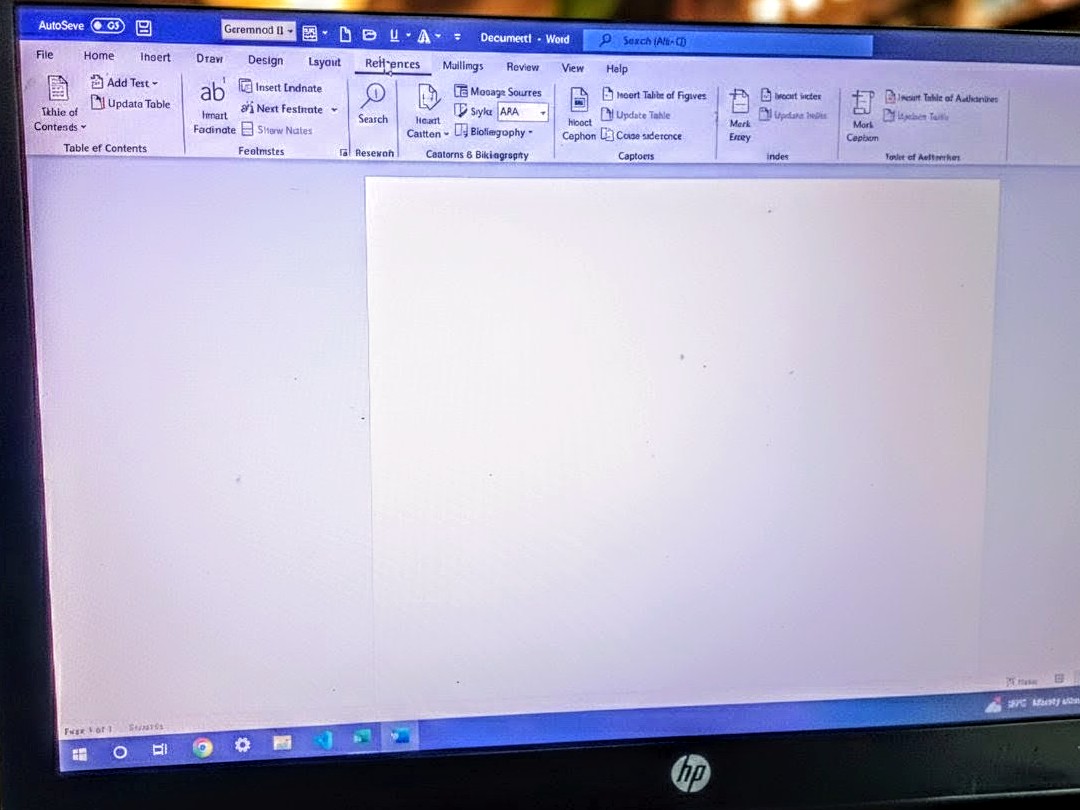
Microsoft Word is more than just typing and formatting text. One powerful feature many people ignore is the References Tab. If you are writing projects, research work, reports, books, or official documents, the References tab helps you stay organized, professional, and accurate.
In this guide, Goglow Hub breaks down the References tab in a simple and practical way, so you can start using it confidently.
What Is the References Tab in MS Word?
The References Tab is used to:
It is mostly used in academic, professional, and official documents.
Features of the References Tab
1. Table of Contents (TOC)
The Table of Contents automatically lists headings in your document with page numbers.
What it is used for:
How to use it:
2. Footnotes and Endnotes
Footnotes and endnotes are used to add extra explanations or references without cluttering the main text.
Footnotes appear at the bottom of the page
Endnotes appear at the end of the document
How to insert:
3. Citations & Bibliography
This feature helps you reference books, websites, journals, and articles properly.
Step 1: Choose a citation style
You can find this in the Style dropdown.
Step 2: Insert a citation
Step 3: Insert Bibliography
Word automatically lists all your sources
Note:
4. Captions
Captions are used to label:
Example:
Figure 1: Student Attendance Chart
How to add a caption:
This is very useful in projects and reports.
5. Cross-References
Cross-references allow you to refer to:
Example:
“See Figure 2 on page 5.”
Word updates this automatically if pages change.
6. Index
An Index helps readers quickly find topics and keywords in long documents like books.
How it works:
Word generates the index automatically.
7. Table of Authorities
This is mostly used in legal documents to list:
It is optional but important for law-related documents.
Why the References Tab Is Important
Using the References tab helps you:
At Goglow Hub, we teach our students not just how to type, but how to work smartly and professionally.
Who Should Learn the References Tab?
Learn Microsoft Word Professionally at Goglow Hub
At Goglow Hub, we offer hands-on training in:
Microsoft Word
Excel
PowerPoint
Data Analysis
Digital & IT Skills
📍 Location: Owerri, Imo State
📞 Contact us today and upgrade your computer skills.



.jpg)

.jpeg)

 Courses
 Graphics Design
 Web Development
 Mobile App Development
 System Application Development
 Computer Appreciation
 Architectural Design
 UI/UX Design
 Programming
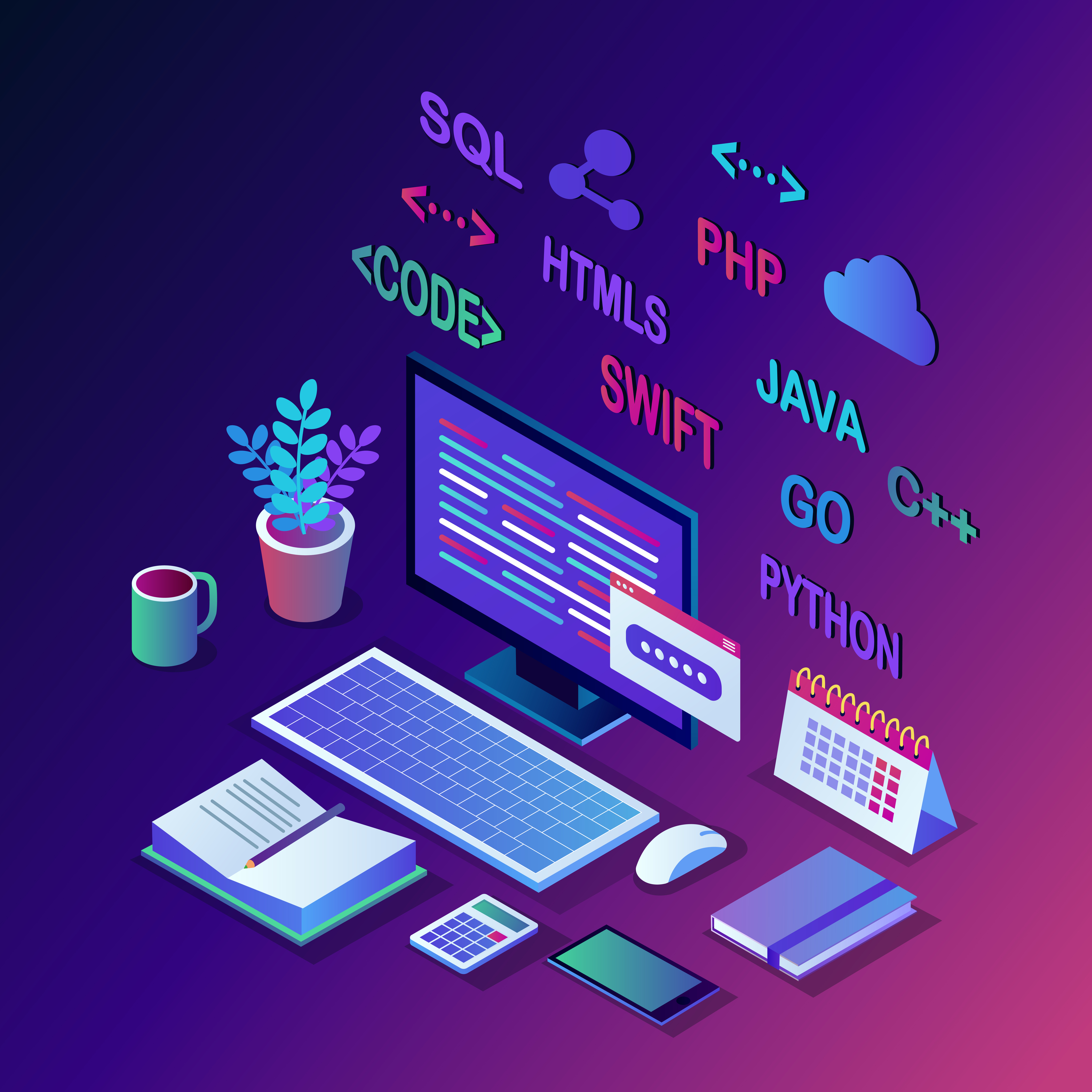 Software Development
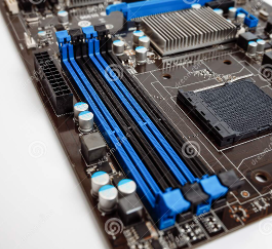 Computer Repairs
 Solar Panel Installation
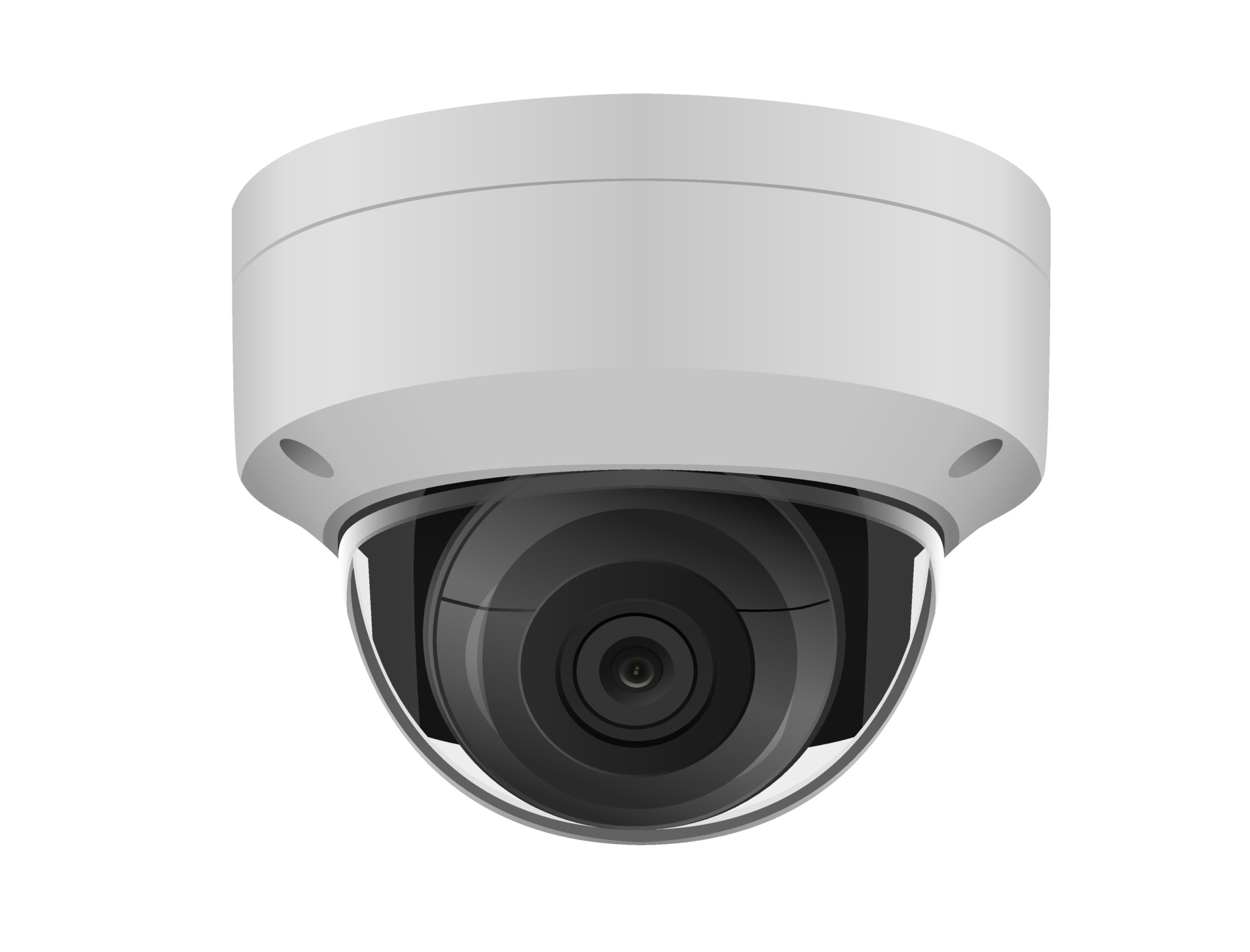 CCTV Installation
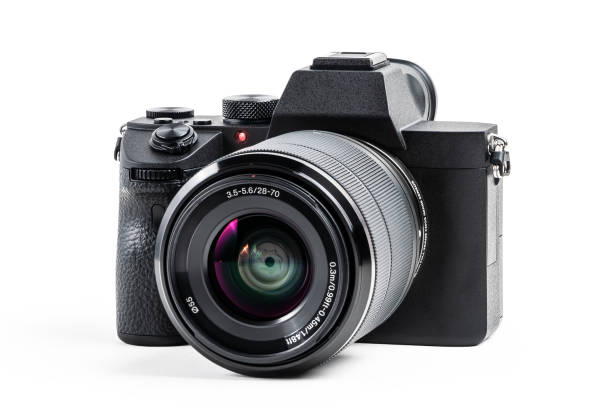 Digital Photograpghy
 Digital Marketing
 Data Analytics
 Database Management
 Ethical Hacking
 Blockchain Development
 Jamb CBT Practice
 TOEFL Training
 IELTS Training